Whitelabeling & Custom Branding
Make NanoLog an indistinguishable, native extension of your own application. With our premium Whitelabeling suite, you can fully replace all default NanoLog branding with your own company's logo, tailored headers, and custom footer signatures.
Why use Whitelabeling?
When integrating third-party tools like release notes and feedback collectors, visual consistency is paramount to user trust. By whitelabeling the NanoLog widget and public hosted pages, you get:
- Elevated Trust & Interaction: Users are significantly more engaged with changelogs and roadmap items when they appear natively under your brand identity.
- Unified Polish: Replacing third-party markers with a custom header logo and custom footer gives the impression of a bespoke, built-in system.
- Zero Distractions: Keep your users fully focused on your own product updates and feature roadmap without external brand clutter.
Configuring Whitelabel Settings
Branding settings are configured directly within the dashboard and apply instantly across all widget environments and public-facing portals.
- Navigate to Widget Appearance in your dashboard settings.
- Under the Widget Panel customization options, locate the branding inputs.
- Custom Header Logo: Enter a secure URL pointing to your company's SVG or PNG logo (e.g.,
/nanoLog_N_logo.svg). This will replace the default "Updates" text header. - Custom Footer Branding: Provide a personalized title and subtitle for the bottom of your widget (e.g., Acme Support and Powered by Acme Enterprise).
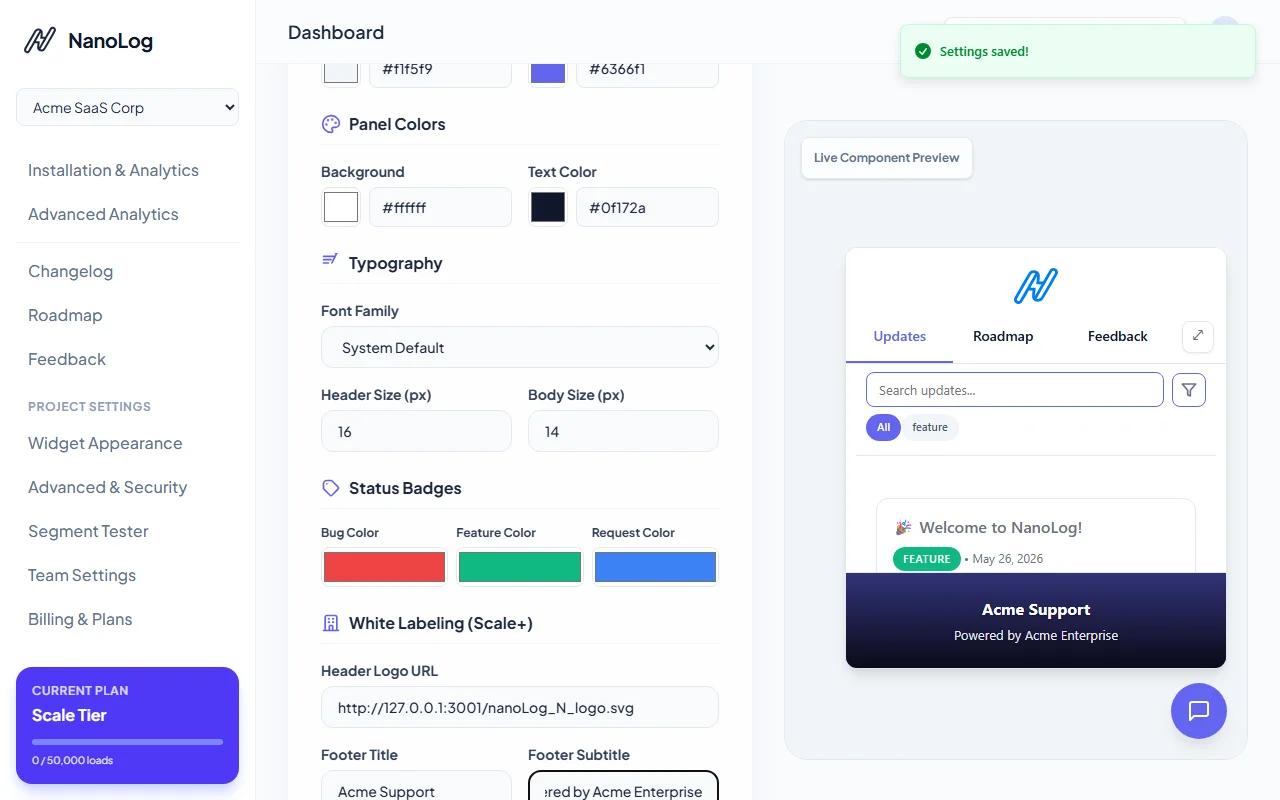
- Click Save Configuration to sync settings across the system immediately.
The Whitelabeled Widget Experience
Once saved, the widget panel updates in real-time. Instead of generic styling, the top header is branded with your custom corporate logo, and the footer is custom-signed with your support channels and tagline.
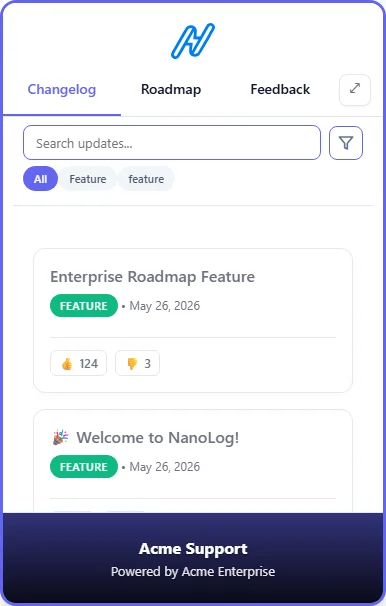
Note: Custom logo and footer whitelabeling capabilities are premium features available exclusively to organizations on the Scale and Enterprise tiers. For information on upgrading, visit the Billing & Plans section.